Building KIWI: A Local Document Intelligence Workbench for Non-Technical Power Users
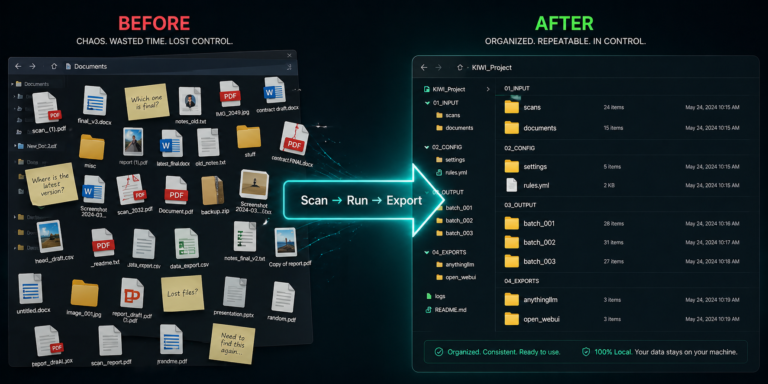
For the past several months, I’ve been deep in a personal project that started as a simple need and evolved into something much more useful: KIWI — Knowledge Intake Workbench Intelligence. As a B2B marketing leader with 25+ years of experience running GTMStack.pro, I work with massive collections of documents — notes, case studies, proposals, research, wikis, and more. I wanted a tool that could intelligently organize these files for local AI platforms like AnythingLLM and Open WebUI, without requiring coding, cloud uploads, or complex setup.
The Core Problem KIWI Solves
- Too many files in one folder → slow or crashing imports
- No consistent naming or categorization → poor retrieval in AI tools
- Manual organization is soul-crushing at scale (500–5000+ files)
- Non-technical users get lost in technical configuration
KIWI’s mission: Make high-quality document preparation feel as simple as “drop files → click go → get organized output.” From Desktop to Web: The Architecture Decision I started with a fully-featured PySide6 desktop app (Python 3.11, SQLite, full classification pipeline with rules + AI support). It’s polished, feature-complete, and still my daily driver.
Architecture Decision
- Python handles the heavy lifting (file I/O, PDF/DOCX parsing, SQLite state, Ollama/Claude/OpenAI integration)
- Next.js delivers a modern, responsive UI that feels familiar
- Everything runs locally — no data leaves your machine
- Simple Windows .bat launchers for non-technical users
The Core Problem KIWI Solves Large document collections break most local AI workflows. With too many files in one folder, the process can become slow or even crash. Inconsistent naming and categorization lead to poor retrieval in AI tools. Manual organization becomes overwhelming at scale (500-5000+ files) for non-technical users.
Design Philosophy: Simplicity for Real Users
- Fixed base paths + short folder names
- Smart batch workflow
- Contextual sidebar guide
- Quick Settings panel
- Batch Prep Tool
- Triage tab
The UI evolved through many iterations — cleaner headers, better spacing, color-coded status, prominent success banners, and persistent state so switching to Settings doesn’t lose your project context. Key Features Project + Batch Model: One project (export settings) + multiple import batches Classification Engine: Rule-based (FORCE_RULES, company/project maps, keywords) + optional AI fallback (ai_only_unclassified mode recommended) Multiple Export Profiles: AnythingLLM, Open WebUI, or Both with proper folder structures Archive Prep Tool: Handles 5000+ file collections gracefully Local AI Support: Ollama (recommended: qwen2.5:7b), Claude, OpenAI Session Resilience: Auto-recovery, draft saving, easy “New Project” reset
Technical Highlights & Lessons Learned
Session management was the biggest pain point — we made it bulletproof with graceful recovery and single-source-of-truth tokens. Folder handling in browser → backend required careful path resolution and auto-creation. State persistence across page navigation via localStorage + backend JSON files. Packaging for real users: INSTALL.bat, START_KIWI.bat, STOP_KIWI.bat + clear README so anyone with Python + Node can run it in minutes.
Current Status & How to Try It
KIWI Desktop is production-ready. KIWI Web (the browser version) is now in a shareable state on GitHub. Recommended Ollama model: qwen2.5:7b with ai_only_unclassified mode — fast enough on consumer hardware while delivering excellent classification accuracy. I’m releasing this as open source because I believe tools like this should exist for knowledge workers, researchers, consultants, and anyone drowning in documents. If you work with local AI and need better intake workflows, I’d love your feedback.
Try it: Visit the repo (link coming soon), download the ZIP, run INSTALL.bat once, then START_KIWI.bat. Drop some files in a batch folder and watch it organize them.
What’s next?
Full feature parity with Desktop, improved Triage UX, more export templates, and possibly an Electron wrapper for true one-click desktop app feel.
“The development process was iterative and humbling. Many Cursor sessions were spent tightening UX, fixing edge cases, and removing legacy cruft from earlier experiments. The result feels solid and genuinely helpful.”